


A new phone excites you as you want to explore its unique features. The problem comes when you want to transfer data from one phone to another, which is tedious. Android and Apple have different ecosystems, so you cannot transfer data directly.
However, you can find other options to complete this task instead of direct data transfer. These ways allow you to transfer files from Android to iPad efficiently. This article will help you learn three different ways of moving data.
Way 1: MobileTrans App – Mobile App
Buying a new phone and transferring the data manually from the old to the new phone can be frustrating. You can even forget to transfer essential files from Android to iPad while carrying this process one by one. Many apps are there to help transfer data from one phone device to another.
Mainly, such apps have data security issues, and they are challenging to use. MobileTrans mobile app is a secure and easy-to-use option for transferring files from Android to iPad. It is a fast way to transfer data and ensure no data remains in your old phone. You can selectively choose data to move from one phone to another with this app, which is available for Android and iOS users.
Key Features
- With the help of this data transfer app, you can transfer iCloud data to Android directly and efficiently.
- MobileTrans App supports 6000+ mobile devices running on different systems, such as Android or iOS.
- It can transfer photos, videos, and other kinds of data from Android to iOS devices.
Steps to Transfer the Data from Android to iPad through MobileTrans Mobile App
You can use this app for faster data transmission than Bluetooth data transfer. An easy-to-follow steps to use this app for data transfer are given below:
Step 1: Download the MobileTrans – Mobile App for Activating Phone Feature
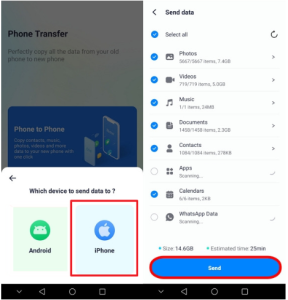
Initiate the process by downloading this data transfer app on Android and iPad devices. After that, open the app on your old phone, which is Android, and choose the “Phone to Phone” option from the main interface. Now, tap the “Old Phone” option to specify the source for data transfer.

Step 2: Categories the Old Phone and Data to Transfer
Then, select the “iOS” option to specify the target device for transferring the data. Later, a new screen opens from where you will find all your data types. Next, choose the required data for transferring and hit the “Send” button to transfer the data.
Step 3: Ensure Successful Transfer through Maintaining a Consistent Connection
After completing the previous instructions, move towards the iPad to launch this app. Then, choose the “Phone to Phone” option from the dashboard and the “New Phone” option. Afterward, authorize the app to access the location, Wi-Fi, and nearby devices by granting the necessary permission. After permission, connect the Android and iPad with a QR code. Following this secure connection, your file transfers smoothly from Android to iPad.

Way 2: Google Drive – Cloud Storage
In addition to the MobileTrans App, you can transfer data with the help of Google Drive. It is a cloud-based storage system that will facilitate the data transfer from an old phone to a new one. You can upload the data on Google Drive and download it to the new device by accessing it from the same account. Moreover, you can encrypt your backups by using the Google account password.
Key Features
- Google Drive can integrate with Sheets, Docs, and Slides, allowing your team to collaborate.
- This cloud storage service also integrates with the apps and tools for effective app data sharing.
- It has a built-in protection feature that protects the uploaded files from malware, spam, or phishing.
Instructions to Transfer the Data from Android to iPad via Google Drive
Users can easily use Google Drive to transfer data from Android to iPad. Let’s explore the steps for Android-iOS file transfer using this Google app:
Step 1: Begin the process by downloading Google Drive from the Play Store and launching it to get access. After that, connect with Drive by signing into the Google account for data transfer. Then, tap the “New” button from the bottom of the main interface to access the bottom-up menu. Select the “Upload” option to upload files from your Android smartphone.

Step 2: After uploading the files, move to the iPad and open Google Drive on this device. Next, log in to the same account from which you have uploaded the files. After syncing, you will see numerous data types in the folders on the application. Later, choose the “Three Dots” icon parallel to all uploaded files and tap the “Download/Make available offline” option from the menu to download this data on the iPad.

Way 3: Wondershare MobileTrans – Desktop App
Usually, data transfer apps are only available on mobile devices, not desktops. Wondershare MobileTrans is a versatile application available on desktops. This desktop app helps you with Android to iOS file transfer for all versions of Windows and macOS.
Once you download this application to your desktop, you can easily use it without an internet connection. Also, if your phone storage is full, you can use this software to transfer photos and videos to the computer and then delete them from your device. Other than that, it is a one-click solution to carry out file transfer from Android to iPad.
Key Features
- This data transfer software can move 5 data types from computers to mobile devices at a blazing-fast speed.
- Wondershare MobileTrans can transfer mobile apps from Android to Android and Android to iPhone.
- With this innovative software, you can transfer 18 data types, including messages and contacts, between phones.
Guide for Transferring Data from Android to iOS Device Through Wondershare MobileTrans
If a person faces complicated steps to transfer data, this app is the solution. Go through the following steps to learn how to transfer files from Android to iPad:
Step 1: Install and Launch Software to Choose Phone Transfer Feature
First, download this software by visiting the official website and installing it. After launching this app, select the “Phone Transfer” module from the top bar. Select the “Phone to Phone” option from various data transfer options to start the data transferring process.

Step 2: Connect iPad and Android with Computer
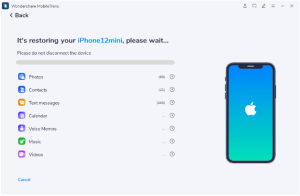
Then, connect the iPad and Android to the computer via USB cables. Once both devices connect, they appear as “Source” and “Destination” devices that indicate the direction of the data transfer. If they are not in your desired direction, swap them with the “Flip” button. Next, choose the data that needs to be transferred and hit the “Start” button to start the process.

Step 3: Ensure Secure Connection for Successful Transfer
After the transfer process starts, you can see the process on the MobileTrans interface. To successfully transfer the data, ensure a secure connection of both devices. Moreover, this phone transfer app lets you transfer files from Android to PC or iPad using Wondershare MobileTrans.
Final Words
In conclusion, you can quickly transfer files from Android to iPad in three ways. Wondershare MobileTrans is a phone transfer app available on mobile and desktop for transferring data. Moreover, Google Drive is a way to store and share files from one device to another. However, due to its multi-functionality, MobileTrans is the best method among these choices.
