

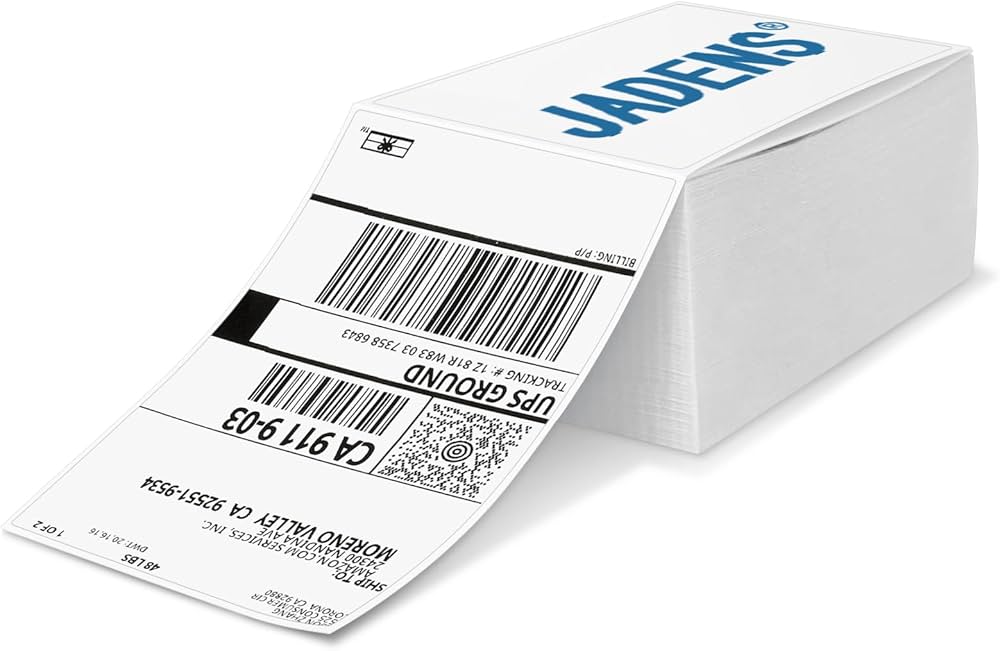
When running a small business or managing an e-commerce store, printing accurate and efficient shipping labels is an essential part of the process. For most businesses, thermal printing has become the preferred method due to its cost-efficiency, speed, and durability. However, to ensure that your 4×6 thermal shipping labels are printed correctly, you must make sure they are compatible with your thermal printer.
In this article, we will explore how to ensure that your 4×6 thermal shipping labels are compatible with your printer. We’ll cover key factors to consider, including printer specifications, software compatibility, label sizes, and troubleshooting common issues. By the end of this guide, you’ll have the knowledge to confidently print thermal labels and streamline your shipping operations.
1. Understanding Thermal Printing Technology
Before diving into compatibility issues, it’s important to have a basic understanding of thermal printing technology. Thermal printing is a process that uses heat to transfer an image onto paper or label material. This process is faster and more efficient than traditional ink-based printing methods. Thermal printers are commonly used for applications such as barcode printing, inventory management, and shipping labels.
There are two main types of thermal printers:
- Direct Thermal Printers: These printers use heat-sensitive paper to print images directly onto the label surface. No ink, toner, or ribbons are required, making them cost-effective and easy to maintain.
- Thermal Transfer Printers: These printers use a ribbon coated with wax, resin, or a combination of both to transfer ink onto the label. Thermal transfer printing produces more durable and long-lasting prints compared to direct thermal printing.
Both types of thermal printers can be used to print 4×6 shipping labels, but it’s essential to verify the type of thermal printer you have and ensure it’s compatible with the labels you want to print.
2. Key Factors to Ensure Compatibility
To ensure that your 4×6 thermal shipping labels are compatible with your printer, several factors need to be considered. These include printer specifications, software compatibility, label size, label material, and printer settings.
2.1. Printer Type and Technology
The first step in ensuring compatibility is knowing what type of thermal printer you are using. Thermal printers come in different technologies, and each type has specific requirements for label materials.
Direct Thermal Printers:
Direct thermal printers are designed to work with heat-sensitive label stock. These labels do not require ribbons or ink, as the printhead directly applies heat to the surface of the label material. If you’re using a direct thermal printer, make sure the labels you purchase are compatible with direct thermal technology. Most thermal shipping labels are specifically labeled as “direct thermal.”
Thermal Transfer Printers:
Thermal transfer printers require a ribbon to transfer the print onto the label. These printers offer more durability, making them ideal for applications that require long-lasting prints. Thermal transfer printers can print on a wider variety of label materials, including synthetic materials and materials that are not heat-sensitive. Ensure you’re using thermal transfer labels that are compatible with your printer’s ribbon.
2.2. Printer Model and Label Size
Another important factor to consider is the model of your printer. Thermal printers come in various sizes and capacities, so it’s important to ensure that the printer supports the size of the label you intend to print, which in this case is 4×6 inches.
Check Printer Specifications:
Each thermal printer has a specific set of supported label sizes. Most shipping printers support 4×6 labels, but it’s important to confirm that your model can accommodate this size. Consult your printer’s manual or the manufacturer’s website to check the list of compatible label sizes and ensure that 4×6 is supported.
Some of the popular thermal printers that support 4×6 shipping labels include:
- Zebra ZD410: A compact direct thermal printer that supports 4×6 labels.
- Brother QL-1100: A thermal label printer that supports 4×6 and larger labels.
- Dymo LabelWriter 4XL: A thermal printer that is specifically designed for printing 4×6 shipping labels.
If your printer model supports 4×6 labels, then you’re good to go. However, if it only supports smaller labels (e.g., 2×4 or 3×5), you’ll need to upgrade to a printer that can handle larger labels.
2.3. Label Material and Adhesive
In addition to the size of the label, it’s essential to ensure the material and adhesive are compatible with your printer. Labels for thermal printing come in various materials, such as paper, synthetic, and specialty materials like polyester or vinyl.
- Direct Thermal Labels: These labels are usually made from heat-sensitive paper. They are ideal for shipping applications that require temporary labeling, as the print fades over time, especially with exposure to heat and sunlight.
- Thermal Transfer Labels: These labels are made from more durable materials like polyester or polypropylene, which are ideal for long-lasting prints that can withstand exposure to heat, moisture, and other harsh conditions.
For a thermal printer to function properly, the label material must be designed for the type of printing technology you are using. Using the wrong label material could result in poor print quality or damage to the printer.
2.4. Software Compatibility
Most thermal printers are compatible with a range of software programs that allow you to design and print shipping labels. Whether you use a shipping platform like Shopify, eBay, or Amazon, or a dedicated label design software like BarTender or Adobe Illustrator, it’s important to ensure that your printer integrates with the software you use.
Check for Printer Drivers and Software:
Before printing, ensure that you have the correct printer drivers installed on your computer. Printer drivers help your computer communicate with the printer, allowing the software to send label designs to the printer correctly.
Many shipping platforms (e.g., Shopify, ShipStation, UPS, and FedEx) have built-in integrations for popular thermal printers. Ensure that your printer is listed as a compatible device within the platform you are using. If you’re using a custom label design software, verify that it supports your specific printer model.
2.5. Printer Settings and Configuration
Once you’ve confirmed that your 4×6 thermal shipping labels are compatible with your printer, it’s important to configure your printer settings for optimal results. Printer settings ensure that the labels are printed correctly and align with your design.
Set the Correct Label Dimensions:
When printing labels, it’s crucial to set the correct dimensions in your printer settings. For 4×6 labels, ensure that the label size is set to 4 inches by 6 inches in both the printer settings and the software you’re using. Incorrect settings can result in misaligned labels, leading to wasted materials and printing errors.
Adjust Print Darkness and Speed:
Most thermal printers allow you to adjust the print darkness and print speed. These settings are essential for ensuring the best print quality. If the print is too light or too dark, adjust the darkness setting. If the print is too slow, you may need to adjust the print speed for faster printing.
3. Troubleshooting Common Issues
Even with compatible labels and settings, issues can arise during the printing process. Here are some common problems and their solutions:
3.1. Misaligned or Cut-Off Labels
If your labels are misaligned or getting cut off, it could be a result of incorrect label size settings in your printer software. Make sure that the label size is set to 4×6 inches in both your design software and your printer’s settings.
Additionally, check the printer’s label feed mechanism to ensure the labels are aligned properly on the roll and that the roll is loaded correctly.
3.2. Fading Prints
Fading prints can occur if your printer’s print head is too hot or if the thermal labels are exposed to high temperatures. Try adjusting the print darkness and speed settings. If the issue persists, inspect the printer’s print head for any damage or wear and clean it according to the manufacturer’s instructions.
3.3. Paper Jams or Label Misfeeds
If labels are misfeeding or jamming, the issue could be related to incorrect label loading. Ensure that your labels are loaded correctly in the printer, with the print side facing the right direction. Also, make sure the label roll is centered in the printer and that there are no obstructions.
4. Frequently Asked Questions (FAQs)
1. Can I use any 4×6 thermal shipping labels with my printer?
Not all 4×6 thermal labels are compatible with every printer. It’s important to ensure that your printer is compatible with direct thermal or thermal transfer labels, depending on your printer type. Always check the printer’s specifications and the label material before printing.
2. How can I test if my 4×6 thermal labels are compatible with my printer?
You can perform a test print by loading a roll of 4×6 thermal labels into your printer and using the printer’s software to print a test label. If the label prints clearly, with the correct size and alignment, it indicates that the labels are compatible.
3. What should I do if my printer isn’t printing properly with 4×6 labels?
If your printer is not printing properly, check the label size settings in both your printer and software. Ensure the labels are loaded correctly and aligned in the printer. If the issue persists, try adjusting the print darkness and speed settings or consult your printer’s manual for troubleshooting steps.
Conclusion
Ensuring that your 4×6 thermal shipping labels are compatible with your printer is essential for efficient, cost-effective label printing. By considering your printer’s specifications, software compatibility, label size, material, and print settings, you can streamline your shipping process and avoid costly printing errors. With proper setup and maintenance, your thermal printer and labels will work seamlessly together, making your shipping operations faster and more reliable.vist: Direct Thermal Labels Suppliers – BETCKEY Label
