

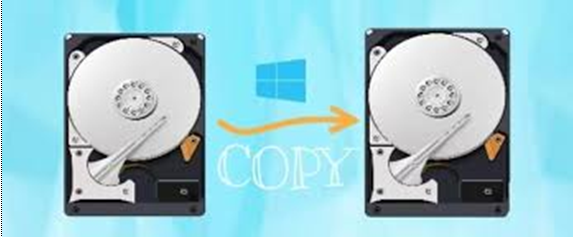
Discover the Fast Disk Clone Software
Let’s chat about disk clone software, also known as disk copy software. It’s basically a magic wand that duplicates everything from your HDD or SSD to another hard drive. And when I say everything, I mean everything – your operating system, partition setup, favorite apps, and personal files.
Imagine having an exact copy of your original disk on a new one, ready to boot up your system from the cloned drive. Pretty cool, right?
If you’re on the hunt for free disk cloning software to move your data around, you’re in luck! We’ve scoured the web and found an incredibly user-friendly cloning tool just for you. Check out the details below!
Need a Quick Disk Clone Tool? Check Out AOMEI Backupper!
Curious if Windows 10 has a built-in cloning tool? Nope, there’s no native Windows software for disk-to-disk cloning. If you want to copy data from one disk to another, you’ll need third-party software.
Copying a disk can take some time, depending on the size, but it’s way quicker than setting up everything from scratch, especially if you have lots of apps.
Now, let’s talk about a top-tier disk cloning tool: AOMEI Backupper. This software is the champion of disk-to-disk cloning. Its Disk Clone feature lets you transfer your entire hard drive to another HDD or SSD in a snap. Plus, it offers Partition Clone if you only need to clone a specific partition. It’s compatible with Windows 11/10/8.1/8/7/XP/Vista and packed with features that make cloning super easy.
Pros:
- Intelligent Clone: This feature copies only the used sectors and skips bad ones from the source. Perfect for cloning onto smaller SSDs without a hassle.
- Sector By Sector Clone: This option clones every single sector from the source to the destination, keeping the original layout intact for easy data recovery.
- SSD Alignment: Since SSDs and HDDs work differently, this feature optimizes partition alignment along SSD block boundaries during cloning, boosting SSD performance like a boss.
Cons:
Some features are only available in the paid version.
Easy Disk Cloning with AOMEI Backupper: Say Goodbye to Data Migration Hassles
Cloning your disk doesn’t have to be a headache, especially with AOMEI Backupper. In this guide, we’ll show you how to effortlessly clone your HDD to SSD, HDD to HDD, or SSD to SSD using AOMEI Backupper’s user-friendly features.
Step-by-Step Guide to Disk Cloning with AOMEI Backupper:
Step 1. Get Ready: Plug in your new disk and install AOMEI Backupper. Launch the software and click on Clone, then select Disk Clone.
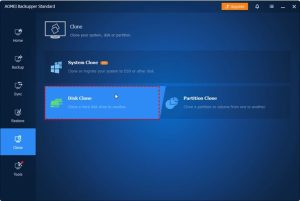
Step 2. Select Source Disk: Choose the disk you want to clone from (the source disk) and click Next.
Step 3. Choose Destination: Pick where you want to save the cloned data (the destination disk) and hit Next.
- Note: Remember, the destination disk will be wiped clean, so back up your files beforehand to avoid losing them.
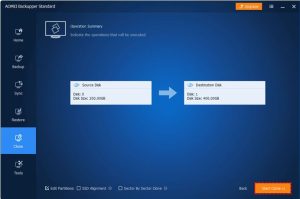
Step 4. Customize Settings: If you’re cloning to an SSD, optimize performance with SSD Alignment. You can also choose Sector by Sector Clone for a complete copy.
Step 5. Start Cloning: Hit Start Clone and let AOMEI Backupper do its magic! Sit back and watch as your disk cloning party kicks off effortlessly.
Important Notes:
- Ensure your target disk has enough space before starting the clone.
- Dynamic disks? Use System Clone or Partition Clone instead of Disk Clone.
Booting from Your Cloned Disk:
Ready to boot up from your shiny new cloned system disk? If your cloned drive has your OS, restart your computer and access BIOS Setup -> Boot by pressing a specific key (usually F2, F8, F12, Del). Set the cloned disk as the primary boot option in BIOS, or simply swap out the old drive with the new one for an instant startup.
Wrap-Up:
In a nutshell, disk cloning is the hassle-free way to move your data from an old disk to a new one. With AOMEI Backupper, you’ll enjoy faster speeds, quicker boot-ups, and a more robust drive overall. For a seamless disk-to-disk cloning experience, trust AOMEI Backupper’s focus on system backup and cloning. It’s your go-to solution with plenty of backup options to keep your Windows systems, hard drives, partitions, and files safe and sound.
