

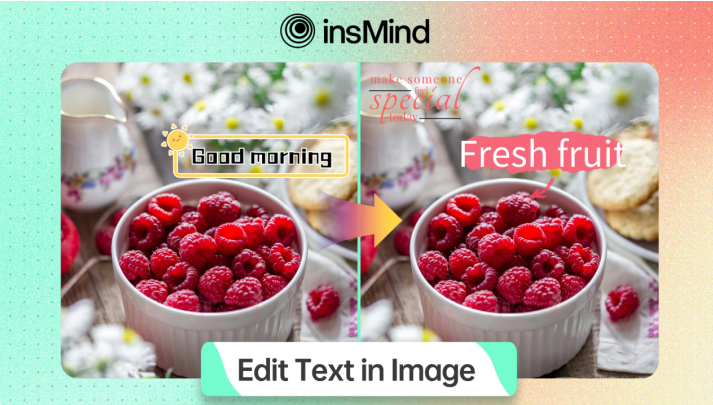
Ever needed to edit text in image and just felt this overwhelming sense of dread from doing it? You surely are not alone! So many people struggle to edit photos for a marketing campaign, personal projects, or upgrade a document scan.
The good news is that text in images does not have to be a complicated editing issue. In this article, we take you through the advantages of editing text, practical use cases, and step-by-step simple guidance using the powerful tools at insMind.
The end will make you confident to handle any text editing activity with ease.
So, let’s start.
Part 1. Why Edit Text in Images?
Before getting straight to how to edit text in photo, it’s essential to first understand why there is a need to do so.
Well, there are lots of reasons behind editing text in an image. Some of them are:
- Error Correction: This could be spelling or grammatical errors that may easily occur in promotional materials or even presentations. Editing will allow you to correct such errors and maintain professionalism.
- Updating Information:Change in contact, dates of events, or offering of products, all these texts are edited to update your pictures with most updated information.
- Aesthetic Appeal: Sometimes, text in a picture simply doesn’t fit a whole design or branding. Editing allows you to adjust font styles, sizes, and colors to enhance visual impact in an image.
- Personal Content Customization: One can have the personal touch on messages or captions included in invitations or greeting cards.
- Marketing Optimization: Generally, editing an image to fit a marketing or social setting of a particular campaign really helps in engaging the viewers. Editing the text allows a facility to craft or tailor the best resonating message with the audience.
Understanding these reasons can help you appreciate the value of editing text in an image, and, subsequently, how it can have a positive impact on your projects.
Part 2. Practical Use Cases for Editing Text in Photos
Though editing text in images has numerous different practical views across various fields, here are some of the most common use cases where you might find this skill particularly favorable:
● Marketing and Social Media:
In the fast-moving world of marketing and social media, visuals are everything to grab attention. Editing in images helps you compose very awesome graphics that convey exactly what you want. Whether it is an upgrade of a promotional flyer making striking social media posts or designing ads, your editing of text yourself also helps you tailor content created to your target audience by maintaining your branding.
● Presentations and Infographics:
Clarity is very essential in making a presentation or infographic. You are likely to want to know whether the information you are going to display can be read and understood easily by your audience. This may include making font sizes suitable, changing colors for better contrast, or correcting typos. The more polished your text looks, the better the presentation or infographic looks and, therefore, enhances your credibility and engages your audience.
● Personal Projects:
Editing text in images is just as helpful for personal projects. Whether it is to design a wedding invitation, a birthday card, or photo collages, the personalized text doesn’t want to hold anyone back on creativity. You can add touchy messages, quotes, or personal touches that would make your projects unique and special.
● Document Scans:
Sometimes, one may need to digitize really important documents, but the scanned text isn’t perfect. Editing of text in document scans enables you to make cleanly legible versions of these files. This is quite handy for archiving yourself or even sharing them online because you will be assured that your text is accurate and professional.
By outlining these real-life applications, you will come to understand that photo text editing can add value to your work by enhancing communication and making the presentation of your ideas easier.
But how to do it? Let’s discuss this in details.
Part 3. Step-by-Step Guide on How to Edit Text in Image
Editing text in images has never been easier, thanks to insMind’s innovative tools. Whether trying to remove distracting, completely unnecessary text or replace unnecessary text with something more viable, insMind has delivered an intuitive interface that integrates AI for professional-quality solutions.
Here is a step-by-step guide on how to have the most from insMind’s “Edit Text in Image” online tool.
Step 1: Access the Tool Page
Begin by visiting the insMind text editing tool page at insMind Edit Text Tool.
Step 2: Upload Your Photo
Once you reach the page for the tool, you will first see an option to upload your photo into it. Just click the upload button or drag and drop your image directly into the available space. The image upload is supported by many formats for maximum flexibility in work.
Step 3: Removing Text in the Image
Once uploaded, you will need to highlight the text to be removed. Circle around the text either using a brush or using the select tool. Next, insMind’s AI technology will automatically detect and erase the selected text from view while retaining the background with a seamless edit.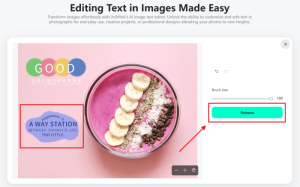
Step 4: Editing Text in the Image
If you wish to replace the removed text or add new text, you can do so in this step.
After removing the original text, simply use the text tool in Edit tab to input your desired text. Customize the font, size, and color to match the style of your image, giving it a fresh and updated look.
Step 5: Download
Once you feel satisfied with the changes you have made, then download your new picture. Just click the download button and it will save your edited photo onto your device ready to use in your projects or presentations.
Part 4. Polish Your Images with some tools
After you’ve edited the text in your images, consider using additional tools from insMind to further enhance your visuals.
Here are some fantastic options that can take your images to the next level:
1.AI Image Expander
With the AI Image Expander, you can easily increase the dimensions of your images without losing quality. Advanced AI algorithms go into ensuring your pictures come out sharp and clear; hence, it is good for enhancing backgrounds or creating additional space in your visuals.
2.AI Shadow
Depth in images can be added, like creating realistic shadows that add visual appeal to the images. The AI Shadow tool allows you to apply shadows effortlessly, enhancing the three-dimensional effect of your images and making them stand out.
3.AI Replace
Need to replace things in your photos? The AI Replace tool is designed for quick and easy replacements. Whether it’s changing a background, an object, or a specific detail, this tool uses AI to seamlessly integrate new elements into your images.
4.Add Stickers to the Photo
For a fun and creative touch, check out the option to Add Stickers to Photo. In this tool, you can stick various types of stickers onto your pictures to make them more interesting for social network publications or for any of your projects.
Conclusion
So, that’s how you can edit text in image. Whether it be work or some personal projects, insMind allows you to immediately remove unwanted texts and add desired texts in their place for a more polished and professional image.
But that is not all: insMind offers some more options to enhance your image. You can resize it, add shadow, or even put some fun stickers on. All of this makes creating great visuals a breeze.
Ready to start? Just head over to insMind today and see how easy this is to use for your image transformations.
