

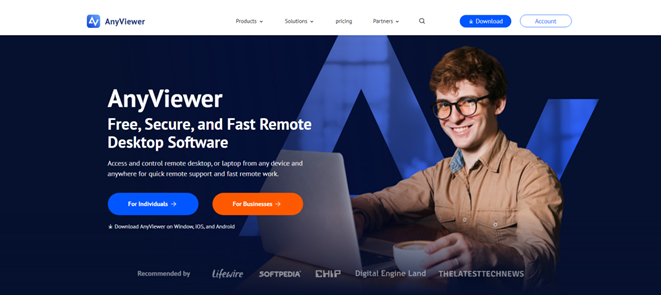
Can you use remote desktop for free?
Whether working from home, helping family with a computer problem, or simply assisting a client with a new project, with the suitable tools You can easily get to your digital stuff from another computer without paying.
Some remote desktop software provide free remote desktop services for private use only. Luckily, AnyViewer offers a unique free remote PC solution that users can try at work or with clients to enjoy a host of special features for free, including unattended remote access, file transfer, multiple sessions. The distance won’t get in the way of you finishing your work remotely from home or supporting those that you have businesses with.
Benefits of using free remote desktop software AnyViewer
There are some benefits to remotely control a desktop using AnyViewer, the best free remote desktop software for PC:
- Instant start
Start instantly without worrying about budgets, invoices, or comparing programs. Just download AnyViewer, set up the free remote connection, and access your home PC from anywhere.
- No obligation
You’re not tied down. If you want to try a different free remote PC program or switch to something else, you can stop using AnyViewer without any obligations.
- The right fit
The software may prove suitable not only for personal use among friends and family but also for professional or business needs.
- Great user base
Choosing a reputable and trusted solution such as AnyViewer is recommended, not just for security but also because of its large user base, which constantly provides feedback on bugs and security issues. It’s crucial to ensure there’s a wide user community and active developers who regularly update the software.
Steps for remote desktop control via AnyViewer
Below are the steps you can follow for unattended remote access using AnyViewer to control a desktop without supervision:
Step 1. Install and register AnyViewer on the remote desktop
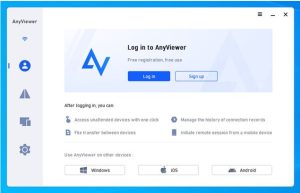
Navigate to the official AnyViewer website and download this free remote desktop software for Windows onto the remote desktop. After installation, open the program and sign in with your AnyViewer credentials. If you’re a first-time user, you’ll need to register for an account before logging in.
Step 2. Log in to AnyViewer on the local device
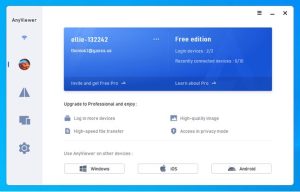
On your local device, whether it’s a laptop, PC, iPhone, or Android device, install AnyViewer and log in using the same AnyViewer account credentials.
Step 3. Establish a remote session with the remote desktop
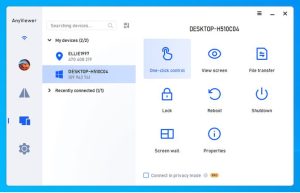
Locate the target remote desktop under the “My Devices” list on your local device. Then, simply utilize the “One-click control” feature for quick and straightforward remote access.
More AnyViewer options to explore
The free version of AnyViewer offers numerous valuable features and functionalities. From providing technical support to eliminating malware and accessing social networks, to playing PC games, it serves a wide array of needs. This capability allows small businesses with constrained budgets to connect with associates, partners, and clients’ devices in real-time, enhancing productivity and efficiency by troubleshooting issues promptly.
For teams, organizations, or big enterprises with higher needs, AnyViewer meets your business needs of management and monitoring with other options, Professional and Enterprise plans. These plans offer unlimited simultaneous sessions and channels, mass deployment through MSI, streamlined organization and management of devices, etc. All these features make AnyViewer the robust infrastructure necessary to support the complex demands of large-scale enterprises while facilitating seamless collaboration and data management.
Conclusion
AnyViewer is a great free remote desktop software that lets you control another computer from far away. You can use it for work, helping friends with computer problems, or just connecting to a computer in a different place. It’s handy because you don’t have to pay, and you can stop using it whenever you want without any obligations. AnyViewer is trusted by lots of people, which means it’s safe and regularly updated. Whether for remote work, technical support, or business collaboration, AnyViewer empowers users to bridge distances effortlessly. Download and try it right now!
