


Are you looking for an easy and safe way to transfer photos from iPhone to Windows 11 PC? Usually, using iCloud or iTunes to transfer iPhone files to Windows PC is a good way for Apple users (including me). But as is well known, iCloud only provides each user with 5GB of free storage, and any files above this limit require additional purchases. Besides, iCloud and iTunes require a good and stable internet connection to transfer photos from iPhone to Windows PC.
As a result, compared with several photo transfer apps, I found a relatively good iOS to PC transfer tool named FoneTool. It has an intuitive and user-friendly interface which is suitable for both the newbie and the techie.
FoneTool Reviews – Transferring Photos from iPhone to Windows 11
FoneTool is a free, safe, and professional iPhone transfer app designed for seamless iPhone to PC data transfer. With the help of FoneTool, you can choose to transfer various files (including photos, videos, music, messages, and more) from your iPhone to your PC. At the same time, you can easily transfer photos to iPhone from PC, as well as transfer files from iPhone to iPhone with one click.
How to Transfer Photos from iPhone to Windows 11 PC [Step-by-Step Guide]
So, how to transfer photos from iPhone to PCWindows 11 using the FoneTool app? No matter what type of photos you have stored on your iPhone, FoneTool can help you transfer various photo file formats to your PC.
Step 1: Launch FoneTool on your Windows 11 PC > Connect your iPhone to your Windows 11 computer using the USB cable.
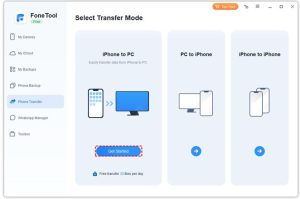
Step 2: Once connected, locate and click the Phone Transfer option > Select the iPhone to PC mode and then click Start Transfer.
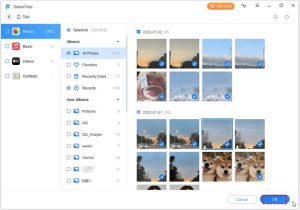
Step 3: Click the Photos icon to preview and select the specific photos you want to transfer. Whether you choose some of the photos or all of them, click OK to confirm your selection.
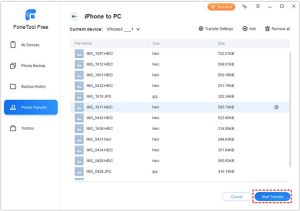
Step 4: Click Transfer Settings to select a location for photo transfer >Click Start Transfer to transfer photos from iPhone to Windows 11.
Why Choose FoneTool to Transfer Photos from iPhone to Windows 11?
There are so many apps that transfer photos from iPhone to Windows, so why do you choose FoneTool to transfer images from your iPhone to your Windows 11 PC? Here are some of the main benefits of using FoneTool to move your iPhone photos to a Windows 11 computer:
- Offline Transfer (No Internet Required):FoneTool allows you to transfer photos without the need for an Internet connection.
- Selective Transfer: With the help of FoneTool, you can preview and transfer your photos selectively, giving you the flexibility in choosing specific photos instead of transferring the entire photo library.
- Efficient Transfer Speed: FoneTool ensures fast transfer speeds, enabling you to quickly move photos from iPhone to Windows PC without any length of time.
- Support for Various File Types: In addition to transferring photos, FoneTool supports the transfer of various file types, including videos, music, contacts, messages, and more, offering comprehensive data management capabilities.
Certainly! Here are some pros and cons of using FoneTool to transfer your iPhone files:
Pros:
- FoneTool can handle a wide range of photo file formats (like JPEG, PNG, HEIC, etc.), ensuring compatibility with different types of images stored on iPhone.
- FoneTool offers an easy-to-use interface and makes the photo transfer process easy for technical users at all levels
Cons:
- FoneTool is not compatible with macOS, limiting usability for individuals who use Apple computers or have a hybrid device ecosystem.
Inaddition to photo transfer, FoneTool is one of the most powerful iPhone backup software that can help you make a full or selective backup of your iPhone.
The Bottom Line
After reading this post, you learn iPhone to PC data transfer software called FoneTool and know how to transfer photos from iPhone to PCWindows 11 with the FoneTool app. Among the range of iPhone transfer apps, it is crucial to choose a free, safe and reputable transfer tool to move your iPhone files to PC. Now utilize FoneTool to enjoy a seamless data transfer process.
