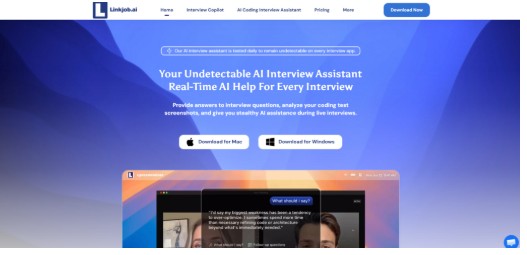
Remote interviewing in 2026 rarely happens on a single screen. Candidates juggle phones for recruiters’ texts, tablets for note-taking, and laptops for the video call itself. Platforms have evolved to accommodate this reality, with most major conferencing tools offering mobile apps, browser-based fallbacks, and cross-device synchronization. Yet many of the AI assistants designed to help candidates during interviews remain stubbornly tethered to a single desktop operating system. I spent two weeks testing how this desktop-only constraint shapes the real-world experience of using an AI interview assistant across different machines, internet conditions, and conferencing setups, focusing not on whether the tool works but on what happens when the environment around it changes.
The Multi-Device Reality That Most Remote Candidates Inhabit
The idealized image of a remote interview, one person, one laptop, one quiet room, rarely matches lived experience. Candidates take interviews from co-working spaces where Wi-Fi fluctuates, from homes where a desktop machine sits in one room but the only quiet space is another, and from situations where the primary computer is a work-managed device that blocks unapproved software. I wanted to understand how a desktop-only AI assistant navigates these constraints, so I tested it across three scenarios: a MacBook Pro in a home office with stable fiber internet, a Windows desktop in a shared apartment with variable Wi-Fi, and a work-managed MacBook that restricted third-party installations.
The Stable Home Office Scenario and What It Reveals About Baseline Expectations
On the MacBook Pro with fiber internet, the tool performed as its documentation describes. The installation completed without issues beyond the standard unverified developer warning, the overlay appeared with sub-second latency, and the suggestion quality remained consistent across a two-hour mock interview session. The machine had sufficient memory and processing headroom, and the invisible layer did not interfere with Zoom or the coding platform running simultaneously. In my testing under these near-ideal conditions, the tool delivered exactly what it promised: fast, contextually relevant suggestions that I could read without breaking eye contact with the camera. This scenario represents the baseline against which I measured everything else, and it confirmed that the core engineering is sound when conditions cooperate.
The Shared Apartment Scenario Where Wi-Fi Became the Bottleneck
The Windows desktop sat in a living room where three other people streamed video during parts of the day. The internet connection, a standard broadband package with variable upload speeds, occasionally dipped below the threshold that the AI assistant requires for its real-time processing. When the connection faltered, the overlay did not disappear, but the suggestions arrived with a noticeable delay, sometimes two to three seconds after the interviewer finished speaking. In one instance, the tool displayed a brief placeholder indicating it was reprocessing audio, and I had to fill the silence with improvised commentary while waiting for the next cue.
How Network Instability Compounds the Cognitive Load of a Live Interview
The delay itself was manageable, but its secondary effect was more consequential. When the AI assistant lagged, I found myself splitting attention between the interviewer’s follow-up question and the still-loading suggestion from the previous exchange. This split-second context switching, invisible to the interviewer but mentally taxing for me, created moments where my spoken answers became less fluent. The tool is designed for low-latency environments, and while no software can fix a bad internet connection, the lack of an offline fallback or a local processing mode means that candidates with unstable connections face a compound disadvantage: they are already stressed about the interview, and now they must also worry about whether their invisible assistant will keep pace.
The Work-Managed Device Scenario That Blocked Installation Entirely
The third scenario proved the most instructive. The work-managed MacBook, equipped with mobile device management software and a corporate security policy, prevented the installation of any application not signed by an approved developer certificate. The installer never reached the point where I could override the security warning; the system blocked it at the kernel level with no user-facing option to proceed. This is not a flaw in the AI assistant, it is a reality of enterprise device management, but it exposes a significant gap in the tool’s applicability. Many job seekers who are currently employed and interviewing discreetly use their work laptops for remote calls, and a desktop-only tool that requires local installation cannot serve this substantial segment of users. A browser extension or a mobile companion app would bypass this limitation entirely, but neither exists in the current product.
How the Three-Step Workflow Behaves Across Different Environments
The platform’s workflow, installation, configuration, and activation, interacts differently with each environment, and understanding these interactions clarifies where the tool fits into a real job seeker’s technology stack.
Step 1: Download and Install on the Target Machine
The download page detects the operating system and offers the appropriate installer, which participants in my earlier accessibility experiment confirmed works as expected on both Mac and Windows.


On unmanaged personal machines, the installation proceeds after the user navigates the operating system’s security warnings. On managed devices, the installation fails silently or with a policy violation alert that the user cannot override. The platform’s documentation does not address this scenario, and no workaround, such as a portable version or a browser-based alternative, exists. Candidates who rely on employer-provided hardware will need a separate personal device, which adds cost and logistical complexity that the product’s marketing does not acknowledge.
Step 2: Configure the Profile and Test the Connection
Once installed, the configuration interface accepts resumes, role details, and personal notes, and a quick practice session confirms that the overlay and suggestion engine are working.
The Absence of a Connection Quality Indicator Before the Interview
The tool does not display any network diagnostic information, latency estimate, or connection quality indicator before or during a session. Users cannot know in advance whether their current internet speed will support the tool’s real-time processing requirements. I found myself running a separate speed test before each mock interview to gauge whether the environment would cooperate, a step that the platform could integrate directly into the activation flow. A simple green-yellow-red indicator would give candidates a chance to switch networks or relocate before the interviewer joins, rather than discovering the limitation mid-sentence.
Step 3: Activate the Invisible Layer and Begin the Interview
With the profile configured and the connection presumed stable, the user activates the invisible overlay and joins the video call.
How Screen Sharing and Multiple Monitors Affect the Overlay Behavior
I tested the tool with a dual-monitor setup, a configuration increasingly common among remote workers. The overlay appeared on the primary monitor where the interview platform ran, but dragging the conferencing window to the secondary monitor did not automatically move the suggestion panel. I had to manually reposition the overlay, a small interaction that could become distracting if done mid-interview. On a single-screen setup, the overlay stayed correctly positioned even when I switched between the video call and a coding platform in the same window. The tool’s screen-recording immunity held across all monitor configurations, as confirmed by post-session playback.
How a Desktop-Only Approach Compares to Multi-Platform Alternatives
To place the cross-platform constraint in context, I compared the desktop-only experience to the approaches taken by other tools in the same category.
| Aspect | Browser Extension Interview Tool | Mobile Companion App | Linkjob AI Desktop Client |
| Managed Device Compatibility | Depends on browser extension policies | High; runs on separate phone | Blocked on devices with strict installation policies |
| Multi-Monitor Handling | Browser-native; follows window | Separate device; no monitor dependency | Requires manual repositioning on secondary monitors |
| Network Resilience | Varies by extension architecture | Can use cellular data as backup | Fully dependent on desktop internet connection |
| Setup Portability | Tied to browser profile | Works on any supported phone | Installed per machine; no sync between devices |
| Undetectability During Screen Share | Varies; some extensions leave traces | Inherently separate from the interviewing device | High across all tested platforms and monitors |

The desktop-only architecture is both the tool’s greatest strength and its most significant limitation. The invisibility features, the Activity Monitor hiding, the screen-recording immunity, all depend on the application running as a native desktop process with low-level system access that browser extensions and mobile apps cannot replicate. This technical foundation delivers the undetectability that the platform markets as its core differentiator, and in my testing across Zoom, Teams, and Google Meet, the invisibility held consistently.
However, the desktop-only constraint also creates an exclusion zone that the product’s positioning does not address. Employed job seekers using corporate laptops, candidates in regions where personal laptop ownership is less common, and people who rely on shared family computers or internet cafés cannot access the tool. The lack of a mobile companion app, even one with reduced functionality for practice sessions only, means that candidates cannot prepare on their phones during commutes or lunch breaks. The absence of browser-based access eliminates the possibility of quick configuration changes or practice sessions on borrowed machines.
The result is a tool that serves a specific profile exceptionally well: job seekers who own a personal Mac or Windows laptop, control their internet environment, and have sufficient technical confidence to manage installation and configuration independently. For this group, the desktop-only approach delivers an experience that browser-based alternatives cannot match in terms of stealth and responsiveness. For everyone else, the tool remains out of reach, not because the AI is inadequate but because the delivery mechanism filters users before they ever see a suggestion appear on screen. As remote hiring continues to spread across industries and geographies, the gap between what the technology can do and who can actually access it will become one of the defining tensions in this product category.