

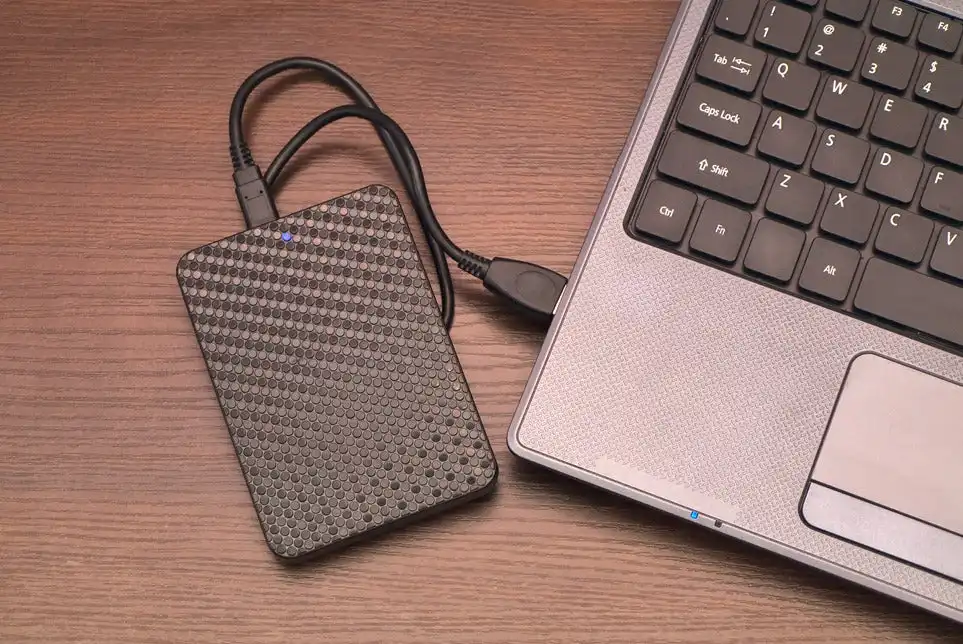
Why need Windows backup?
You may never experience data loss, but you should be aware that your computer is vulnerable to other threats that you are unaware of. According to a recent survey, over 12,000 laptop computers are lost or stolen each week in the United States, one-tenth of computers are infected with viruses on a monthly basis, and 5% of new laptops face hardware failure within their first year. Creating Windows backup is important for the following reasons:
- Data Protection: Backups protect your vital files from loss due to hardware failure, system crashes, viruses, or unintentional deletion.
- Disaster Recovery: Having a backup allows you to swiftly restore your data and minimize downtime in the event of system breakdowns or hardware failures.
- Peace of Mind: Knowing that your data is safely backed up gives you peace of mind, allowing you to focus on your work without fear of losing important information.
- Version Control: By backing up your information on a regular basis, you can keep various versions of your data and recover earlier versions more easily if necessary.
There are countless advantages to mention to create a backup. And in the following text I will name one comprehensive backup tool for your convenience.
How to create Windows backup
Although there are various built-in utilities for creating Windows backups, such as Backup and Restore and File History to create standalone backup. However, it will be much effortful to create backup one by one. In order to meet diverse needs, you need to use a single central console to backup several PCs and servers. AOMEI Cyber Backup is an excellent enterprise backup solution for enterprises of any size. It focuses on easy server backup, ensuring business continuity and allows you to back up all vital company data across several platforms, including VMware, Hyper V, MS SQL databases, and physical workstations. It has various features:
- Centralized backup: Create and manage backups for all PCs, servers, and virtual machines on a LAN.
- Diverse backup options: You can create different backup types like system, disk, partition, file, SQL server, VMware, and Hyper-V backup.
- Schedule backup: You can enable schedule automated backups on a daily, weekly, or monthly basis.
- 3 backup methods: Enable Incremental or Differential Backup to backup changes after a previous Full Backup.
Thanks to its unique and user-friendly UI and settings, users can handle any tasks on it as easy as pie. Then let’s continue to know how to create a Windows system backup via this tool.
Stepwise guide to backup Windows PC/Server
Now I will show you how to run a system backup task. Before you start, please download and install AOMEI Cyber Backup on your computer.
Step 1. Establish a proper installation of this software:
Install AOMEI Cyber Backup on one computer as the central console > Install Agent package on client computers.
Go to “Agent” > “Add Agent” to get control of your client computers.
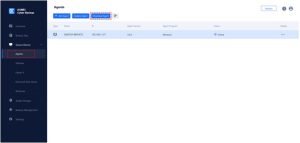
Step 2. You can create backup tasks as follow:
- Go to Backup Tasks > Create New Task and choose the task you want to create. Here, we take System Backup as an example.
- Click the system you want to back up and select a destinatio
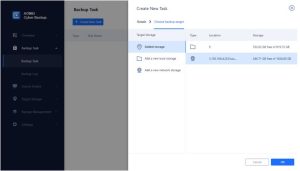
- You can enable Schedule Backup option to backup your computer automatically.
- Backup Cleanup helps you automatically delete other backups older than X days versions based on rule to save storage space.
Note:
- Backup Cleanup: This option allows you to automatically erase obsolete backup versions based on rules in order to manage storage locations more efficiently.
- Notification: Enable email notifications to receive email notification when the task is unusual or successful.
- Schedule: You can automatically backup small business items on basis of Once/Daily/Weekly/Monthly. In the Advanced tab, you can choose scheduled backup mode as full backup, incremental backup or differential backup
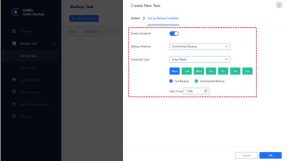
- Then enable Start Backup option to start business Windows backup.
In sum
After reading this essay, you should understand the value of Windows data backup. One efficient and dependable software can save you time and energy, AOMEI Cyber Backup is the most effective backup solution for small enterprises. With a simple interface and the flexibility to manage several client PCs, you can easily execute your small business backup strategy without spending a lot of time or effort.
