



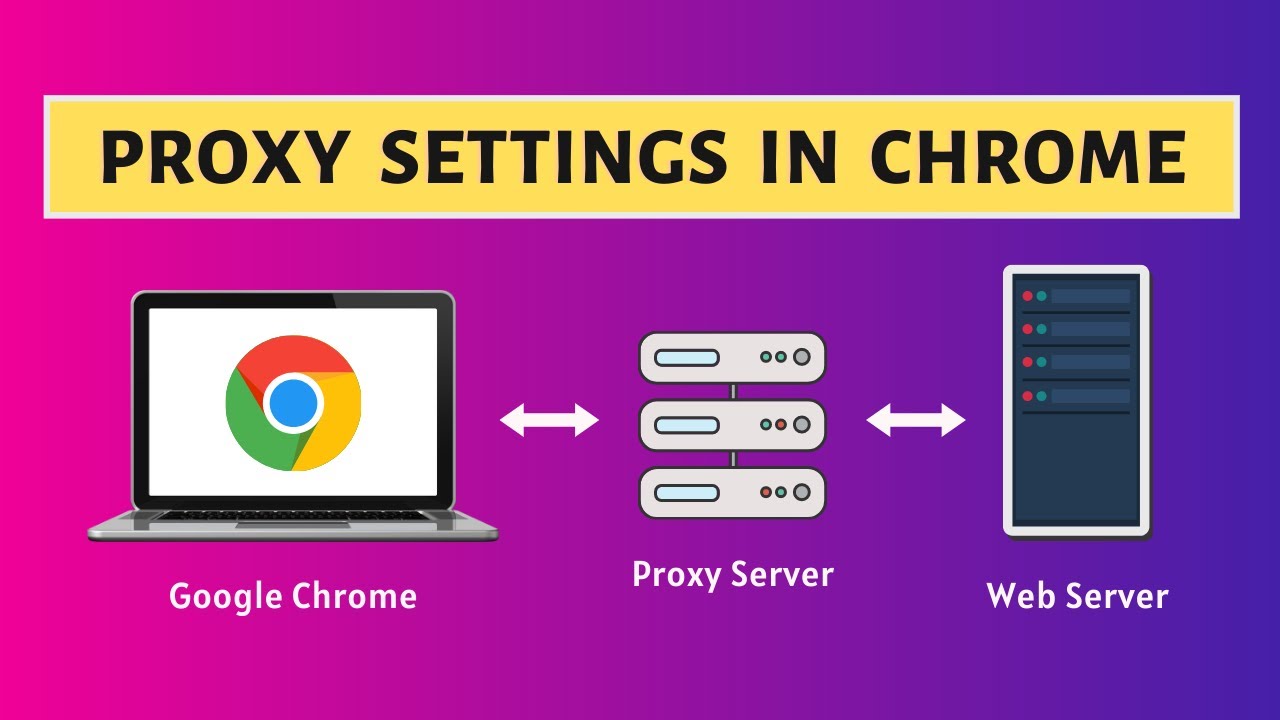
Chrome does not handle proxy routing the way most users assume. Unlike Firefox, which manages its own network stack, Chrome defers almost entirely to the operating system’s network settings – with a few important exceptions. Understanding this distinction is the first step toward configuring a proxy server that actually works the way you need it to.
Whether you are routing traffic through a residential IP for account management, tunneling requests through a datacenter proxy for scraping, or simply bypassing a geo-restriction, the configuration method you choose in Chrome will determine whether your proxy is applied cleanly, selectively, or not at all.
This guide covers every valid configuration path for using a proxy server in Chrome – from the built-in settings shortcut and manual LAN setup to browser extensions and protocol-level decisions. It also explains where each method breaks down and how to avoid the most common configuration mistakes.
Why Chrome Handles Proxies Differently Than Other Browsers
Chromium’s architecture routes network requests through the operating system’s WinHTTP stack on Windows and libproxy or system preferences on macOS and Linux. This means that when you open Chrome Settings and navigate to the proxy configuration panel, clicking “Open your computer’s proxy settings” does exactly that – it opens the OS-level dialog, not a browser-internal one.
The practical implication: a proxy configured through Chrome’s settings shortcut will affect all applications on the machine that rely on system proxy settings, not just Chrome. This catches many users off guard. If you need proxy isolation – routing only Chrome’s traffic through a specific IP while leaving other apps unaffected – you need a different approach.
Firefox, by comparison, maintains its own proxy resolver. Setting a proxy in Firefox affects only Firefox. Chrome has no equivalent built-in mechanism, which is why browser extensions have become the standard solution for proxy control within Chrome specifically.
Four Ways to Configure a Proxy Server in Chrome
Each method has a distinct scope, use case, and set of limitations. The table below summarizes the key differences before we go deeper on each.
| Method | Scope | Auth Support | Best For |
| System Settings | All traffic | No (IP-auth only) | Simple, single-user setups |
| Chrome Flags | Browser only | No | Dev/testing environments |
| Proxy Extension | Browser only | Yes (user:pass) | Dynamic switching, per-tab |
| Manual (LAN Settings) | Browser only | Yes (dialog prompt) | One-off configuration |
Method 1: Using System-Level Proxy Settings
This is the path Chrome’s native settings panel leads you to. On Windows, it opens Internet Properties > Connections > LAN Settings. On macOS, it opens System Preferences > Network > Proxies. On Linux, the path depends on the desktop environment.
To configure a proxy this way: open Chrome and navigate to Settings > System, then click “Open your computer’s proxy settings.” In the resulting OS dialog, enable “Use a proxy server,” enter your proxy IP address and port, and apply. Chrome will immediately begin routing traffic through that proxy – alongside any other application that respects system proxy settings.
This method supports HTTP and HTTPS proxy types natively. SOCKS5 proxies can also be configured at the system level on all major operating systems. Authentication (username and password) is typically handled via a system prompt the first time a connection is made, though some configurations require the credentials to be embedded in the proxy URL directly.
Method 2: Launching Chrome with Proxy Flags
Chrome supports several command-line switches that override system settings and configure proxy behavior at launch. This approach is primarily used in automated environments, QA pipelines, or developer setups where proxy configuration needs to be scripted or per-instance.
The core flag is –proxy-server, used as follows: chrome –proxy-server=”socks5://192.168.1.1:1080″ for a SOCKS5 proxy, or chrome –proxy-server=”http://proxy.example.com:8080″ for an HTTP proxy. You can combine this with –proxy-bypass-list to exclude specific domains from the proxy route, using semicolons as separators.
This method affects only that specific Chrome instance. It does not modify system settings and does not persist after the session ends. For multi-instance proxy assignment – running several Chrome windows through different IPs simultaneously – command-line flags combined with separate Chrome profiles is one of the cleaner solutions available without third-party tooling.
Method 3: Proxy Extensions (The Practical Standard)
For most non-automated use cases, a Chrome proxy extension is the most flexible and precise solution. Extensions like Proxy SwitchyOmega, FoxyProxy, or the ProxyControl extension developed by Proxys.io use Chrome’s chrome.proxy API, which allows per-browser proxy assignment completely independent of system settings.
The extension-based approach enables username and password authentication, which system-level configuration often handles awkwardly. It also allows switching between multiple proxy profiles, setting per-domain rules, and toggling proxies on and off without touching OS settings.
For users who rely on verified proxy infrastructure, the ProxyControl browser extension from Proxys.io supports API-based proxy import, per-IP profile management, and one-click switching – removing the manual entry overhead that makes managing proxy lists at scale impractical.
The limitation of extension-based proxies is that they apply only within the browser. Traffic from non-browser applications on the same machine remains unaffected. This is usually the desired behavior, but worth noting explicitly.
Method 4: PAC File Configuration for Selective Routing
A Proxy Auto-Configuration (PAC) file is a JavaScript function that Chrome evaluates for each outbound request to determine whether to connect directly or route through a proxy – and if so, which one. PAC files are specified via a URL in system proxy settings or through extensions, and Chrome fetches and caches them at startup.
The FindProxyForURL function at the heart of every PAC file takes the request URL and host as inputs and returns either DIRECT or a proxy string such as PROXY 192.168.1.1:8080. This makes PAC files the right tool when you need conditional routing: send traffic to certain domains through one proxy, other domains through another, and everything else directly.
PAC files have a parsing quirk worth knowing: Chrome evaluates them synchronously in a dedicated thread, which means a misconfigured or unreachable PAC URL can block all network requests. Always host PAC files on a reliable internal endpoint, and always test with Chrome’s built-in –log-net-log flag before deploying to production.
HTTP vs HTTPS vs SOCKS5: Choosing the Right Protocol in Chrome
The protocol you configure determines what Chrome can and cannot route through your proxy. HTTP proxies handle standard web traffic but do not encrypt the connection between Chrome and the proxy server itself. HTTPS proxies (sometimes called SSL proxies) add a layer of encryption on that segment, which matters if the proxy server is remote and you are on an untrusted network.
SOCKS5 is the most flexible protocol. Unlike HTTP/HTTPS proxies, which operate at the application layer and are HTTP-aware, SOCKS5 proxies operate at the transport layer and forward raw TCP (and optionally UDP) traffic without protocol-level inspection. This means SOCKS5 handles non-HTTP traffic – including WebSockets, SMTP, and custom TCP applications – while HTTP proxies generally cannot.
In Chrome’s context, SOCKS5 requires configuration through system settings, command-line flags, or an extension that explicitly supports it. Entering a SOCKS5 address in a basic extension field that expects an HTTP proxy will not work correctly and typically results in connection refused errors or silent routing failures that are difficult to diagnose without packet inspection.
Matching Proxy Type to Use Case
Before configuring a proxy in Chrome, the infrastructure decision – which type of proxy IP to use – matters more than the configuration method itself. A correctly configured proxy pointed at the wrong IP type will still fail for the intended use case.
| Proxy Type | Protocol | Detection Risk | Recommended Use Case |
| Datacenter IPv4 | HTTP/HTTPS/SOCKS | Medium | Scraping, automation |
| Residential IPv4 | HTTP/HTTPS/SOCKS | Low | Social media, ad verification |
| Mobile Proxy | HTTP/HTTPS | Very Low | Multi-accounting, farming |
| Shared IPv4 | HTTP/HTTPS/SOCKS | Higher | Low-budget, light tasks |
| IPv6 | HTTP/SOCKS | Low-Medium | High-volume, cost-sensitive |
Residential proxies are assigned through real ISP connections, which makes them appear as ordinary consumer traffic to target sites. They are the standard choice for social media management, account operations, and any task where automated detection systems are in play. Datacenter proxies are faster and cheaper but carry higher detection rates on fingerprint-aware platforms.
Mobile proxies route through cellular carrier networks and typically rotate IPs via carrier NAT, giving each request a fresh IP from a shared pool. They are particularly effective for tasks that require both high trust scores and IP diversity, such as activity farming or multi-account operations on platforms with aggressive session correlation.
Handling Proxy Authentication in Chrome
Chrome handles proxy authentication through a native dialog that appears when a proxy server returns a 407 Proxy Authentication Required status. The user is prompted for a username and password, and Chrome caches these credentials for the duration of the session.
The problem with this approach is that credential caching is not persistent across Chrome restarts, and the authentication dialog does not appear at all for CONNECT tunnels initiated by some extension-based proxy setups. In practice, this means the most reliable way to handle authenticated proxies in Chrome is to use an extension that explicitly manages credentials as part of its proxy profile configuration, or to use IP-based authentication (whitelisting your machine’s IP at the proxy provider level) to eliminate the authentication step entirely.
IP-based authentication eliminates the need for repeated credential input by allowing access only from pre-approved IP addresses. This approach is particularly effective when managing multiple machines or cloud instances that require stable proxy connectivity without per-session authentication prompts.
Common Chrome Proxy Configuration Errors and What They Actually Mean
ERR_PROXY_CONNECTION_FAILED is the most generic error and indicates Chrome could not establish a TCP connection to the proxy host on the specified port. This usually means the IP is wrong, the port is wrong, or the proxy server is offline. It does not mean authentication failed – that produces a separate 407 response.
ERR_TUNNEL_CONNECTION_FAILED appears specifically when Chrome is attempting to use CONNECT to tunnel HTTPS traffic through an HTTP proxy, and the proxy refuses or misconfigures the tunnel. This is common when HTTP proxies are configured in situations where SOCKS5 is required, or when the proxy only supports specific destination ports.
ERR_NO_SUPPORTED_PROXIES means Chrome evaluated all proxy options – including PAC file output – and found none it could use. This typically indicates a PAC file syntax error, an unsupported proxy type string in the PAC output, or a PAC file that returned an empty result for the requested URL.
Diagnosing these errors accurately requires Chrome’s internal net log. Start Chrome with –log-net-log=netlog.json, reproduce the error, then open the log in the NetLog Viewer at netlog-viewer.appspot.com. The structured event stream shows exactly where proxy resolution fails, which saves hours of guesswork.
Step-by-Step: Setting Up a Proxy in Chrome via Extension
The following steps apply to any extension that uses Chrome’s chrome.proxy API, including ProxyControl and SwitchyOmega. The underlying mechanics are the same across all of them.
- Install the proxy extension from the Chrome Web Store and open its settings panel.
- Create a new proxy profile and select the proxy protocol: HTTP, HTTPS, or SOCKS5.
- Enter the proxy server IP address and port provided by your proxy provider.
- If your proxy requires authentication, enter the username and password in the credentials fields – do not leave these blank if your provider uses user:pass auth rather than IP whitelisting.
- Save the profile and activate it using the extension’s toggle or profile selector.
- Verify the proxy is active by visiting an IP checking service such as ipinfo.io and confirming the displayed IP matches your proxy’s assigned address.
- If the IP does not match, check whether another system-level proxy is overriding the extension, or whether the extension’s chrome.proxy API call is being blocked by an enterprise policy.
When the Problem Is the Proxy Infrastructure, Not the Configuration
A correctly configured proxy that still produces connection errors, unexpected IP leaks, or inconsistent performance is rarely a Chrome problem. These symptoms point to issues at the infrastructure level: IP reputation degradation, subnet blacklisting, or overcrowded shared proxy pools.
IP reputation is particularly difficult to recover once degraded. If a proxy IP has been used for high-volume scraping, spam operations, or account abuse by previous users, target sites will block it regardless of how cleanly Chrome is configured to use it. The only practical fix is switching to a fresh IP – ideally from a provider that enforces clean-use policies and maintains reputation monitoring at the pool level.
For tasks that require stable, high-trust IP infrastructure – residential proxies for social media operations, dedicated datacenter IPs for scraping pipelines, or mobile proxies for account farming – the proxy pool quality matters more than any configuration optimization. Misconfigured good proxies can be fixed in minutes; correctly configured bad proxies are a structural problem.
The Configuration That Actually Holds
Using a proxy server in Chrome is straightforward once you understand which layer of the stack you are actually configuring. System settings work for broad, machine-wide routing. Command-line flags work for isolated, scripted instances. Extensions work for flexible, user-controlled browser-level routing with authentication support. PAC files work when conditional routing logic is required.
The choice of configuration method should follow from the use case, not from convenience. And the choice of proxy infrastructure should follow from the target environment’s detection capabilities. Both decisions compound: the best proxy pool in the world configured incorrectly will fail, and the best configuration built around low-quality IPs will fail just as reliably.
Get both right, and Chrome proxy configuration becomes a non-issue.


