



Although it is very frustrating for me to lose important files, you may encounter various accidents: hard drive failure, accidental deletion, formatting failure, system crash, etc.
Among the many tedious file recovery methods, a professional file recovery software is worth recommending.
In the data recovery software market, MyRecover is considered a popular and effective option. If you are looking for suitable file recovery software, or looking for alternatives to other software, this review will help you a lot.
Overall Evaluation
We test MyRecover for hours and it can be proved that MyRecover provides reliable file recovery in numerous mainstream situations. And there are many other unique advantages.
Advantages
- Provide free version for file recovery
- Easy graphical user interface
- High recovery rate
- Fast recovery speed
- Support main file systems
- Extensive file type support
Disadvantages
Only support Windows operating system now


Let’s have a look at the most important part: features of MyRecover.
Recover files from any storage device
MyRecover can help you recover deleted and lost files from any storage device, containing internal/external hard drive, USB flash drive, SD card, SSD, and more.
Recover more than 200 file types
More than 200 types of file can be recovered via MyRecover. You can try to restore documents, pictures, videos, audio, emails, system files, ZIP files, etc.
Keep recoverable files original
MyRecover will never change and corrupt your recoverable files. The filename, format and path of recoverable files will be original.
Find deleted files quickly and completely
Quick Scan and Deep Scan will scan the selected drive completely to find all deleted files. Then MyRecover offers Search and Filter features to help you locate deleted files faster.
Compatible with all Windows operating systems
MyRecover can be used on all Windows operating systems, including Windows 11, 10, 8, 7 and Windows Server 2022, 2019, 2016, 2012, etc.
Provide friendly user experience
MyRecover has easy graphical user interface. You can use MyRecover to achieve one-click scanning and recover deleted files in 3 steps.
How We Tested MyRecover
For a professional file recovery test and to show you how MyRecover works, we downloaded the MyRecover installation package from the MyRecover official website and installed it on a Windows computer according to the instructions.
Then I selected some deleted PDF files from my computer hard drive and tried to use MyRecover to recover them. Let’s see the file recovery process.
Test Process
After setting up the MyRecover program, launch it on the computer. MyRecover detects all my drive on the computer and external hard drives connected to the computer. If I hover the mouse on one of the drives, it will show a Scan icon. Just choose the drive that saved PDF files before to click on it, I finish the one-click scan.
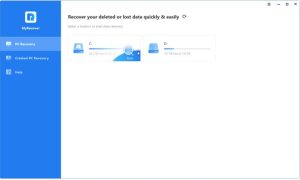

MyRecover performs Quick Scan and Deep Scan on the selected hard drive. All my deleted files and lost files will show on the screen.
Here I want to try the Search and Filter features in MyRecover.
I click on the Type menu and it shows different file type. I choose the Document option here to narrow down the scanning results.
To find deleted PDF files faster, I input PDF in the Search box. Then all the deleted PDF files are in the list.
If you remember the last time that you edit the PDF files, you can also try the Data Modified filter. It involves today, yesterday, last 7 days, last 30 days, and custom options. Also, if you remember how large the file is, you can try the Size filter to locate it.
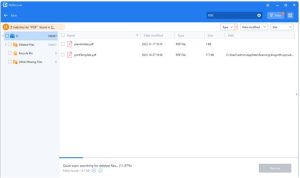

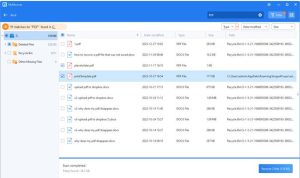
From the scanning results, I select the deleted PDF files by ticking the boxes next to them. Then I choose another path to save the recoverable PDF files. MyRecover performs the file recovery task successfully and quickly.
Test Result
According to the test above, we can see that MyRecover can scan my drives completely with professional scanning methods. MyRecover also provides useful features to make recovery process much easier. The most important is that MyRecover will recover deleted files effectively.
Written In the End
As you can see from this review, MyRecover is a reliable choice for file recovery software. After functional testing of MyRecover, we can find that MyRecover has unique advantages and powerful functions, which will help you recover files more efficiently.


