


What is Cloud Transfer Service?
Cloud transfer service is a tool that helps you automate data transfer between cloud storage providers and lets you transfer large amounts of data quickly and securely. There are many situations where you may need this type of software, such as switching to another cloud provider, consolidating files from multiple cloud accounts to a single account, and so on.
However, choosing a cloud transfer application can be a headache as multiple factors need to be taken into account, such as cloud storage service support, data security, ease of use, and more. Don’t worry, here comes a reliable and easy to use cloud transfer solution.
Reliable & Free Cloud Transfer Software – CBackup
To make data transfer data from one cloud to another as simple as possible, you can use the robust and free cloud backup and sync service, CBackup. Integrated with cloud to cloud sync features, it supports you to do cloud transfer across multiple cloud drives, including Google Drive, OneDrive, Dropbox, FTP/SFTP, etc. And it also comes with the following powerful features:
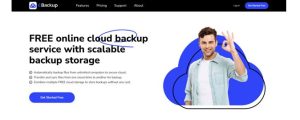
Intuitive interface – It offers cloud data transfer online with a graphical user interface, making it easy enough for all users.
Flexible file transfer – Having no limitations on file size and file type, it allows you to migrate an entire cloud or specific cloud files/folders at will.
Automatic transfer – You can set up scheduled cloud sync at a specific time, daily, weekly, or monthly. For instance, you could migrate Dropbox to OneDrive regularly at 5:00 PM every day.
Free cloud manager – It enables you to add and manage unlimited cloud accounts in one place for easy management and transfer files between them in batches.
High data security – This tool takes multiple measures to safeguard your cloud data, including OAuth authorization system, 256-bit AES encryption, and compliance with GDPR & Privacy.
How to Migrate Data from One Cloud to Another via CBackup
Here we take moving files from OneDrive to Google Drive using CBackup as an example to show you the detailed instructive guides:
Step 1. Please log in to the CBackup web after registering.
Step 2. Click on Add Cloud on the My Storage screen, select OneDrive to add and complete the authorization. Then, add Google Drive in the same process.
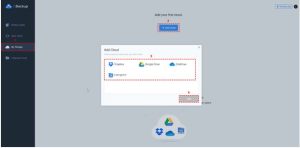
Step 3. Go to Sync Tasks and tap on New Task.
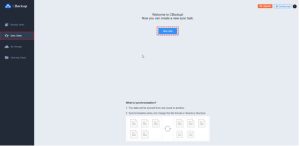
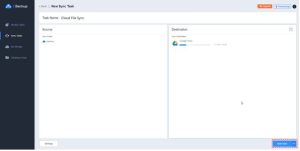
Step 4. Choose OneDrive as the source and select Google Drive as the target. Then, hit Start Sync to copy files from OneDrive to Google Drive effortlessly.
Notes:
>> You could configure automatic cloud transfer in Settings and choose an appropriate cloud sync mode under Scheduler.
>> CBackup also offers a desktop app that is capable of backing data from one cloud to another, and transferring PC files to Google Drive, OneDrive, Dropbox, and CBackup Cloud.
FAQs about Cloud Data Transfer
#1. Can you transfer files from one cloud to another?
Certainly, you can transfer files between clouds. While it is possible to get it done by downloading from the source cloud and then re-uploading to the destination cloud, using a professional cloud transfer service like CBackup can streamline the process and make sure your data is safe and intact.
#2. When to use cloud transfer appliance?
You could use cloud transfer tools in specific scenarios where large amounts of data need to be transferred from one cloud to another, whether they are from different platforms or the same platform.
#3. What is the best way to perform Google cloud transfer?
Relying on the reliable cloud to cloud transfer service CBackup, you can not only migrate data from one Google Drive account to another but also move Google cloud data to another cloud like OneDrive, Dropbox, and so on. And this tool can keep all your data private and safe.
Summary
You can easily perform cloud transfer, like migrating OneDrive to Google Drive, moving Google Drive to Dropbox, or vice versa automatically, with the help of free cloud backup freeware – CBackup.
In addition to cloud to cloud data transfer, this fully featured tool allows you to back up and sync PC files to cloud for local data cloud transfer. Get it and use it to migrate your cloud and local files hassle-free!
