



Why need free partition manager?
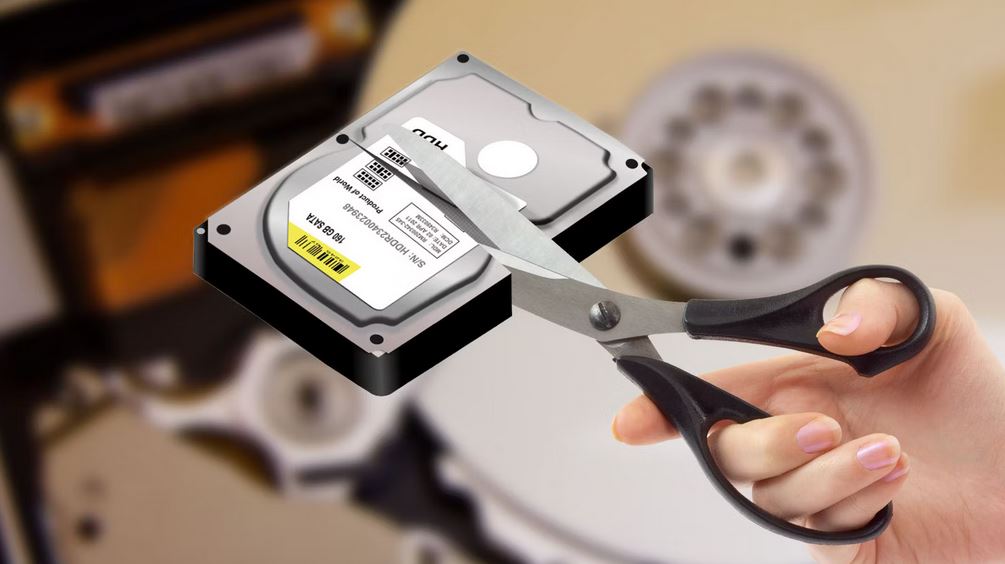
A program created to plan and manage a hard drive’s or storage device’s partitioning procedure is known as partition software. Windows users can create, delete, resize, move, merge, divide, and format disk partitions with the help of partitioning tool.
There are a number of reasons why people look for free partition manager:
Improved performance: Users can increase disk speed by making various partitions for different tasks. For example, system performance can be greatly enhanced by allocating the operating system to the C drive and personal data to the D drive.
Effective data management: By allowing partition resizing or merging, partitioning software makes effective data management possible. When users need to accommodate more data, these features come in quite handy.
Installation of operating systems: When installing several operating systems on a single hard disc, partitioning becomes crucial. As a result, users can create a new partition for installing a different operating system by using free partition manager Windows 11.
Partitioning software is essentially a useful tool for data organization and optimization on computers or storage devices. Getting this software allows users to handle their disks efficiently.
Download free partition manager for Windows 11/10/8/7
Although Windows systems come with built-in partition managers such as Disc Management or DiskPart, many users have reported problems with these tools, such as unfinished procedures or strict requirements.
As a result, third-party partition programs became the top option for many users.Downloading AOMEI Partition Assistant is a dependable and all-inclusive solution among these.
Firstly, It is well known for its simple interface and powerful functionalities, and compatible with all versions of Windows 11, 10, 8, and 7.
Besides, apart from fundamental partition operations like creating, extending, shrinking, deleting, and formatting—all of which are also available in Disk Management, AOMEI software allows users to do complex operations like moving, wiping, splitting, and copying partition to another drive.
In addition, AOMEI Partition Assistant provides a number of capabilities for optimizing hard drives, such as cleaning up disks, deleting large or undesired files, and moving installed applications between drives.
Most importantly, AOMEI program guarantees data integrity during the whole partitioning procedure. It reduces the chance of data loss by protecting files even when committing difficult tasks.
All in all, AOMEI Partition Assistant is user-friendly and suitable for users of all experience levels. It taps into the disk potential and manage partitions efficiently. Think of it as your first option for effective disk partitioning for Windows computers.
How to use this free partition software to extend C drive?
If you want to enlarge your C partition using Windows Disk Management, you must make sure there is unallocated space right behind the C drive, which is hard to guarantee. But it is so easy for AOMEI Partition Assistant.Its “Merge Partitions” feature can easily add adjacent or discontinuous unallocated spaces into the C drive.
Here is the step-by-step guide:
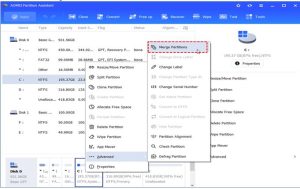
Step 1. Download and run this free partition manager. Right-click on the C drive and choose “Advanced”> “Merge Partitions”.

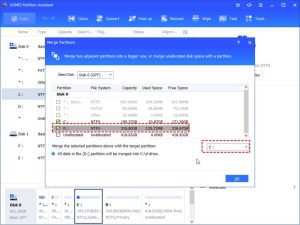
Step 2. Choose the partition and unallocated space you want to merge into C drive, then click “OK”.

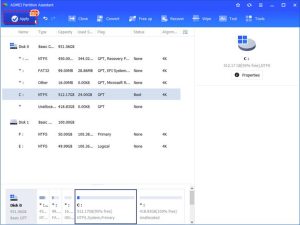
Step 3. Now you can see the unallocated space has been added to C drive. To save the change, please click “Apply” button in the top left corner.

If you want to keep the D drive and there is no unallocated space on the drive, AOEMI Partition Assistant offers a reliable feature called “Allocate Free Space” to allocate free space from one drive to another, for example, from D drive to C drive.
Step 1. Open AOMEI free partition manager Windows 10. Right-click the D drive and choose “Allocate Free Space”.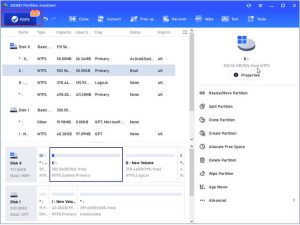

Step 2. In the new window, you can change the space size and target partition. Here, we choose C drive from the drive list and click “OK” to move on.
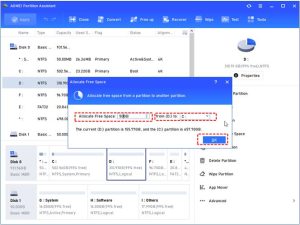

Step 3. Then, you can see that the C drive has been extended. Then, click “Apply” to commit the operations.
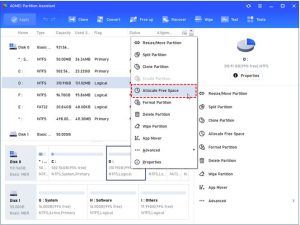

Just in a few minutes, you can extend C drive without data loss.
Conclusion
To organize and optimize your hard drive and partitions on your computer, it is essential to use a powerful and free partition manager. In this post, we recommended AOMRI Partition Assistant. Since 2010, it has been advancing global data security, serving a diverse community of more than 60 million users worldwide.If you have any problems with disks and partitions, don’t hesitate to try AOMEI Partition Assistant.


