

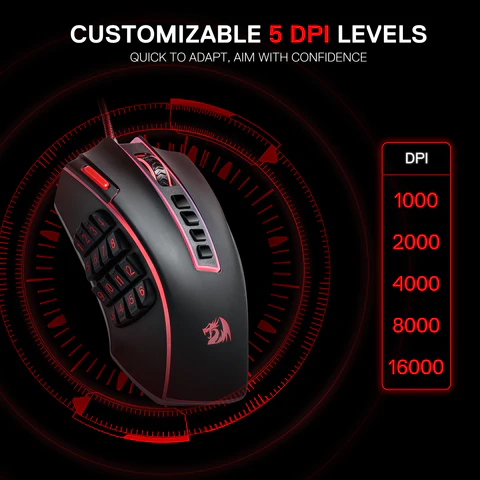
You’ve lined up the perfect headshot, your crosshair is steady, and then—your cursor flies past the target because your sensitivity betrayed you at the worst possible moment. Every competitive gamer has experienced this frustration, and more often than not, the culprit is poorly configured DPI settings. DPI, or Dots Per Inch, determines how far your cursor moves relative to physical mouse movement, making it one of the most critical variables in your gaming setup. For wireless gaming mouse users, getting this right matters even more, since you’re already working to eliminate every possible millisecond of delay between intention and action. The problem is that most gamers either stick with default settings or crank DPI to maximum, assuming higher numbers mean better performance. Neither approach is correct. This guide will walk you through understanding DPI, finding the sweet spot for your preferred game genres, and fine-tuning complementary settings so your wireless gaming mouse becomes a true extension of your reflexes in competitive play.
Understanding DPI and Its Role in Wireless Gaming Mice
DPI, or Dots Per Inch, measures how many pixels your cursor travels on screen for every inch you physically move your mouse. At 800 DPI, moving your mouse one inch shifts the cursor 800 pixels. At 1600 DPI, that same inch of movement doubles the cursor distance. This direct relationship between mouse DPI for gaming and on-screen response is what makes it the foundation of your aiming mechanics. Higher DPI means faster cursor movement with less physical effort, while lower DPI demands more hand movement but delivers finer control over small adjustments. For a wireless gaming mouse specifically, DPI configuration carries additional weight. Because wireless mice process and transmit positional data over a radio signal rather than a direct cable connection, you want the sensor doing as much precise work as possible at the hardware level. A well-matched DPI setting reduces the need for software interpolation or in-game sensitivity scaling, which can introduce micro-delays in cursor response. When your DPI aligns with your natural hand speed and game requirements, the sensor captures your intended movement cleanly, and the wireless transmission delivers it without unnecessary processing overhead. This is why simply maxing out your DPI slider doesn’t improve performance—it often overwhelms your ability to make controlled micro-adjustments, turning precise aim into erratic overshooting.
Finding Optimal DPI Settings for Different Game Genres
The ideal DPI setting doesn’t exist in a vacuum—it depends entirely on what you’re playing and how that game demands you move your cursor. Competitive gamers who bounce between genres need to understand that a single DPI value rarely serves all purposes equally. The speed at which you need to track targets, select units, or navigate menus varies dramatically across game types, and your wireless gaming mouse should adapt accordingly.
First-Person Shooters (FPS) like Call of Duty or CS:GO
For FPS titles, precision trumps speed every time. Professional players overwhelmingly favor mouse DPI for gaming in the 400-800 range, and there’s solid reasoning behind this preference. Lower DPI forces larger physical movements to cover screen distance, which means your small hand tremors and micro-twitches don’t translate into wild cursor jumps during critical moments. When you’re holding an angle in CS:GO or tracking a strafing opponent in Call of Duty, that stability is the difference between landing the shot and whiffing entirely. Lower DPI also gives you superior recoil management—pulling down to compensate for spray patterns becomes more consistent and repeatable when each millimeter of movement corresponds to fewer pixels. You’ll need a larger mousepad to accommodate the sweeping arm movements, but the tradeoff in accuracy is substantial.
Real-Time Strategy (RTS) and MOBA Games like StarCraft or League of Legends
RTS and MOBA games flip the priority. Here, you’re constantly panning across maps, selecting unit groups, and issuing rapid commands across the entire screen. A DPI range of 1000-1600 provides the cursor speed necessary to keep up with fast-paced decision making without exhausting your wrist during extended sessions. In StarCraft, your actions-per-minute demand quick transitions between base management and battlefield control. In League of Legends, you need to snap between minimap clicks and skillshot targeting fluidly. Pair this higher DPI with slightly reduced in-game sensitivity to maintain a balance where speed doesn’t sacrifice clicking accuracy on small targets like individual units or ability icons.
Other Genres: RPGs, MMOs, and Battle Royales
Games that blend exploration, inventory management, and occasional combat benefit from a moderate DPI around 800-1200. Battle royales like Apex Legends or Fortnite require both long-range precision and fast close-quarters flicking, making a middle-ground setting practical. MMOs involve navigating complex UI elements alongside gameplay, so comfortable cursor speed across varied tasks matters more than pure twitch accuracy. Ultimately, these genres reward personal comfort—experiment within this range and settle where your hand feels natural during extended play sessions rather than chasing a theoretically perfect number.
Customizing Your Wireless Gaming Mouse Settings for Better Performance
DPI is only one piece of the puzzle. To truly optimize your gaming mouse settings, you need to address the complementary features that shape how your wireless mouse translates hand movement into on-screen action. Button mapping lets you assign critical actions—weapon swaps, ability activations, or push-to-talk—to thumb buttons or side clicks, reducing the split-second delays caused by reaching across your keyboard during intense firefights. Lift-off distance determines how high you can raise your mouse before the sensor stops tracking, which matters enormously for low-DPI players who frequently lift and reposition during wide sweeps. Setting this to the lowest stable value prevents unwanted cursor drift when you pick up your mouse to reset position. Mouse acceleration is another setting most competitive gamers disable entirely, since it makes cursor speed variable based on how fast you move the mouse rather than how far, destroying the muscle memory consistency you’re trying to build.
Manufacturer software like Logitech G Hub, Razer Synapse, or SteelSeries GG gives you centralized control over all these variables. Create separate profiles for each game you play regularly—your CS:GO profile might run 400 DPI with acceleration off and minimal lift-off distance, while your League of Legends profile bumps to 1200 DPI with different button assignments for item actives. These profiles can switch automatically when the software detects a specific game launching, so your gaming mouse settings adapt without manual intervention. Store profiles in onboard memory when possible, ensuring your configurations travel with the mouse regardless of which PC you plug into at tournaments or LAN events.
The Impact of Polling Rate on Gaming Performance
Polling rate defines how frequently your wireless gaming mouse reports its position to your computer, measured in Hertz. At 125Hz, your mouse sends positional updates every 8 milliseconds—meaning the system only knows where your cursor is 125 times per second. At 500Hz, that reporting interval shrinks to 2 milliseconds, and at 1000Hz, your mouse communicates its position every single millisecond. For competitive gaming, this difference is tangible. A 1000Hz polling rate for gaming ensures that the gap between your physical hand movement and on-screen cursor response stays imperceptibly small, which becomes critical during fast flick shots or rapid tracking scenarios where even a few milliseconds of positional ambiguity can mean missing a target.
The relationship between polling rate and DPI creates a compounding effect on tracking smoothness. Higher DPI generates more positional data points per inch of movement, but that granular data only reaches your system as fast as your polling rate allows. Running 1600 DPI at 125Hz means your mouse captures fine movement detail but delivers it in choppy bursts, creating micro-stutters in cursor travel that feel inconsistent during gameplay. Pairing your chosen DPI with a 1000Hz polling rate ensures every subtle hand adjustment transmits to your PC in real time, producing fluid and predictable cursor behavior. Most modern wireless gaming mice support 1000Hz natively, and some newer models push to 2000Hz or 4000Hz—though the perceptible benefit beyond 1000Hz diminishes for most players. Set your polling rate to 1000Hz as a baseline for competitive play, and only consider higher rates if your system can handle the increased USB polling overhead without introducing frame drops.
Step-by-Step Guide to Adjusting DPI and Settings on Your Mouse
Start by downloading and installing your mouse manufacturer’s software—Logitech G Hub, Razer Synapse, SteelSeries GG, or whichever platform matches your wireless gaming mouse. Once installed, open the application and locate your connected device. Navigate to the sensitivity or DPI configuration panel, where you’ll see your current DPI stages displayed as adjustable values. Remove any unnecessary DPI stages you won’t use during gameplay, keeping only two or three that match your primary game genres. Set your lowest stage to your FPS precision setting (400-800), a middle stage for versatile gameplay (800-1200), and an upper stage for RTS or desktop navigation (1200-1600). Apply these changes and save them to a game-specific profile within the software.
Next, launch your primary game and enter a practice mode, training range, or custom match where you can test aim without competitive pressure. Spend at least fifteen minutes performing common movements—tracking moving targets, flicking between objects, and executing the motions your gameplay demands most frequently. Pay attention to whether you’re consistently overshooting targets or falling short. Overshooting means your DPI is too high for your hand speed; undershooting suggests you need to increase it slightly. Adjust in increments of 50-100 DPI rather than making dramatic jumps, retesting after each change. Once your crosshair lands naturally where your brain expects it to, save that configuration. If you experience input lag or cursor stuttering during testing, verify your polling rate is set to 1000Hz in the software, confirm your wireless receiver is positioned within line of sight of your mouse, and check that no power-saving features are throttling sensor performance. Store your finalized profiles to onboard memory so they persist across different systems without requiring software reinstallation. Many budget-friendly wireless gaming mice from brands like MAMBASNAKE also offer onboard memory and adjustable DPI stages, making these optimization steps accessible regardless of your price point.
Dial In Your DPI and Dominate Every Match
Finding the best DPI settings for your wireless gaming mouse isn’t about chasing the highest number on your sensor’s spec sheet—it’s about matching your configuration to how you actually play. FPS games reward the precision of lower DPI ranges between 400 and 800, RTS and MOBA titles demand the speed of 1000 to 1600 DPI, and genres in between benefit from moderate settings that prioritize comfort during long sessions. Beyond DPI alone, your polling rate should sit at 1000Hz for competitive play to ensure every micro-adjustment reaches your screen without perceptible delay, and complementary settings like lift-off distance, acceleration, and button mapping all contribute to a cohesive setup that feels instinctive rather than fought against.
The truth is, no guide can hand you a universal perfect number. Your hand size, grip style, desk space, and natural movement speed all influence where your ideal DPI lands. What this guide gives you is a framework—start within the recommended ranges, test deliberately in practice modes, adjust in small increments, and trust what your aim tells you. The gamers who dominate at the highest levels aren’t necessarily the ones with the most expensive hardware; they’re the ones who’ve invested time understanding and personalizing every setting until their mouse disappears from conscious thought and only the game remains. Take thirty minutes today to apply what you’ve learned here, and you’ll feel the difference in your very next match.
